---
jupytext:
text_representation:
extension: .md
format_name: myst
format_version: 0.13
jupytext_version: 1.14.4
kernelspec:
display_name: Python 3 (ipykernel)
language: python
name: python3
---
# 9: Files
## What are files?
From Python's perspective, files are data that is outside of the program's main memory. The PY4E textbook calls it "secondary memory".
Secondary memory is essential, because main memory, which holds all the data you create while your Python program is running, goes away once the program stops.
Secondary memory is a place to have data that is persistent. Sort of like long-term memory in humans.
I like this picture from the [PY4E textbook](https://www.py4e.com/html3/07-files) to illustrate the point:
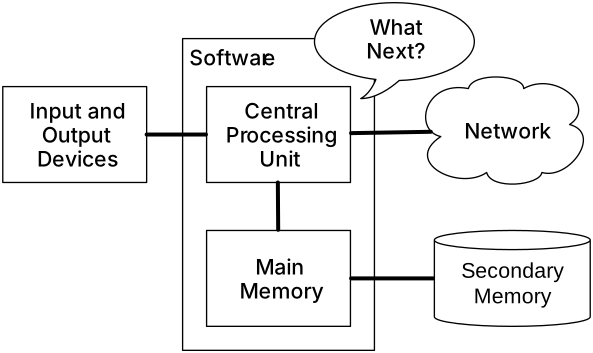 The middle box is where the Python program "lives".
Sometimes Python needs a way to connect to the outside world: "input and output devices" on the left, "network" (e.g., the internet!) on the right, and "secondary memory" (e.g., the hard drive! files!) on the right.
So far our programs have been self-contained (except for talking to the outside world via `input()` and `print()`).
Now we will talk about how to access and write to files in secondary memory so our data can persist beyond a single Python session/program, and also access data that is... more than we can just write into a single Python file or Jupyter cell.
## The `open()` function, and the file handle object
Python interacts with files using the **file handle** object. The `open()` function, as you might suspect, opens a file handle for a file.
Here is an example. What do you think is in `fhand`?
```{code-cell} ipython3
fhand = open('assets/mbox-email-receipts.txt', 'r')
print(fhand)
```
The main parameters of `.open()` are:
1. Path: The *path* to the file you want to connect to
2. Mode: A specification of *how* you want to connect (to read, to write, etc.).
But its return value is *not* the contents of the file! Instead, its output is a **file handle** object: `io.TextIOWrapper`.
I like this picture from the PY4E textbook:
The middle box is where the Python program "lives".
Sometimes Python needs a way to connect to the outside world: "input and output devices" on the left, "network" (e.g., the internet!) on the right, and "secondary memory" (e.g., the hard drive! files!) on the right.
So far our programs have been self-contained (except for talking to the outside world via `input()` and `print()`).
Now we will talk about how to access and write to files in secondary memory so our data can persist beyond a single Python session/program, and also access data that is... more than we can just write into a single Python file or Jupyter cell.
## The `open()` function, and the file handle object
Python interacts with files using the **file handle** object. The `open()` function, as you might suspect, opens a file handle for a file.
Here is an example. What do you think is in `fhand`?
```{code-cell} ipython3
fhand = open('assets/mbox-email-receipts.txt', 'r')
print(fhand)
```
The main parameters of `.open()` are:
1. Path: The *path* to the file you want to connect to
2. Mode: A specification of *how* you want to connect (to read, to write, etc.).
But its return value is *not* the contents of the file! Instead, its output is a **file handle** object: `io.TextIOWrapper`.
I like this picture from the PY4E textbook:
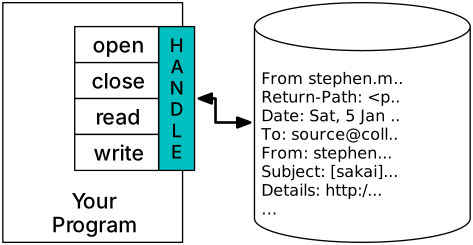 What kind of thing is it? What does it allow us to do?
Just like lists have methods like `.append()`, strings have methods like `.upper()` and `.split()`, and dictionaries have methods like `.update()` and `.get()`, file handle objects have key methods that enable us to work with the actual file:
- read the contents of the file (with `.read()` or `.readlines()`)
- write to the file (with `.write()` or `.writelines()`)
So, in the example above, I've opened a file handle for the mbox-email-receipts.txt file, in the reading mode (`r`), which enables me to use `.read()` to read the contents of the file.
We'll return to the concepts of mode and operations in a bit. First, we need to understand how to direct Python to a file so we can actually open a file handle to it!
## File paths
File paths are a way of giving Python directions to the file's location.
In the example above, the file path was `'assets/mbox-email-receipts.txt'`
There are two parts to a file path:
1. The filename itself.
2. The path/directions to the folder it's in "from where you are"
The filename is obvious, but the path/directions part is not. So let's take a closer look.
### Path, aka directions to a folder
Think of a file path like giving directions to a room in a building. To write a path, you need to know:
1. **Where you are** (your program's **current working directory**)
2. **Where the file is** (the target folder)
3. **How to get there** (the path connecting them)
The building blocks of a path are:
- **Folder names** — the names of directories you need to go through
- **`/`** — a separator between folder names (and between the last folder and the filename). Think of it as "go into..."
- **`..`** — means "go up one level" (to the parent folder). You only need this when the file is *outside* of your current directory — for example, in a sibling folder or a parent folder.
For example, in our earlier path `'assets/mbox-email-receipts.txt'`:
- `assets` is the folder name
- `/` separates the folder from the filename
- `mbox-email-receipts.txt` is the file
This path works because the `assets` folder is inside our current working directory. We can verify this using the `os` library:
```{code-cell} ipython3
import os # get all the data and functions from the os library
cwd = os.getcwd() # show me where I am on the hard drive
current_view = os.listdir() # list all the names of things I can immediately see in my current location
print(f"You are currently in {cwd}\n")
print(f"Here are all the things you can see:")
for thingname in current_view:
print(thingname)
```
#### When would you need `..`?
Imagine your files are organized like this:
```
my_project/
├── code/
│ └── analysis.py ← your program is here
├── data/
│ └── results.csv
└── README.md
```
If your program `analysis.py` is running inside the `code/` folder, the file `results.csv` is *not* in a subfolder — it's in a sibling folder called `data/`. To reach it, you need to go **up** one level first (from `code/` to `my_project/`), then **down** into `data/`:
```python
# from inside code/, go up one level (..), then into data/
fpath = "../data/results.csv"
```
You can read `..` as "go to the parent folder." Here's how the path breaks down:
- `..` — go up from `code/` to `my_project/`
- `/data` — go into the `data/` folder
- `/results.csv` — that's the file
If you wanted to reach `README.md` (which is one level up, not in any subfolder):
```python
# just go up one level
fpath = "../README.md"
```
You can even chain `..` to go up multiple levels: `../../some_file.txt` goes up two levels. But if you find yourself doing that, it's usually a sign to reorganize your files!
### Practice: file paths
Use the following folder structure for all questions:
```
school/
├── projects/
│ ├── project1/
│ │ ├── code/
│ │ │ └── analysis.py
│ │ └── data/
│ │ └── survey.csv
│ └── project2/
│ └── main.py
├── notes/
│ └── lecture1.txt
└── grades.csv
```
**P1.** Your program is `analysis.py` (inside `school/projects/project1/code/`). Write the relative path to open `survey.csv`.
```{code-cell} ipython3
# your code here
# fpath = ???
```
`````{admonition} Answer:
:class: toggle
```python
fpath = "../data/survey.csv"
```
From `code/`, you go up one level (`..`) to `project1/`, then into `data/`, then the file.
`````
**P2.** Your program is `analysis.py`. Write the relative path to open `grades.csv`.
```{code-cell} ipython3
# your code here
# fpath = ???
```
`````{admonition} Answer:
:class: toggle
```python
fpath = "../../../grades.csv"
```
From `code/`, go up to `project1/` (`..`), up to `projects/` (`../..`), up to `school/` (`../../..`), and there's `grades.csv`.
`````
**P3.** Your program is `main.py` (inside `school/projects/project2/`). Write the relative path to open `lecture1.txt`.
```{code-cell} ipython3
# your code here
# fpath = ???
```
`````{admonition} Answer:
:class: toggle
```python
fpath = "../../notes/lecture1.txt"
```
From `project2/`, go up to `projects/` (`..`), up to `school/` (`../..`), then into `notes/`, then the file.
`````
**P4.** Your program is `main.py`. Write the relative path to open `survey.csv` (in project1's data folder).
```{code-cell} ipython3
# your code here
# fpath = ???
```
`````{admonition} Answer:
:class: toggle
```python
fpath = "../project1/data/survey.csv"
```
From `project2/`, go up to `projects/` (`..`), then into `project1/`, then `data/`, then the file.
`````
**P5.** Your program is running from the `school/` folder itself. Write the relative paths to open: (a) `survey.csv`, (b) `lecture1.txt`, and (c) `grades.csv`.
```{code-cell} ipython3
# your code here
# fpath_survey = ???
# fpath_lecture = ???
# fpath_grades = ???
```
`````{admonition} Answer:
:class: toggle
```python
fpath_survey = "projects/project1/data/survey.csv"
fpath_lecture = "notes/lecture1.txt"
fpath_grades = "grades.csv"
```
When you're already at `school/`, everything is below you — no `..` needed! Just go down into the right subfolders. And `grades.csv` is right here, so it's just the filename.
`````
### Relative vs. absolute file paths
So far we have been discussing **relative** file paths: paths that describe how to locate a file *relative to your program's current working directory*.
It is also possible to specify **absolute** file paths: the full location of a file from the root of your filesystem, like `/Users/joel/Documents/data.csv` on Mac or `C:\Users\joel\Documents\data.csv` on Windows.
Absolute paths are almost never a good idea for code you plan to share or submit. If you use an absolute path, your program will break on anyone else's computer, because their filesystem will have different usernames, folder structures, and locations.
For this reason, in this class, we want you to practice writing **relative** file paths for all of your programs that deal with files.
## Working with files
The second parameter of `open()` specifies the **mode** — what you intend to do with the file. Think of it as a permission system: you can only do operations that match the mode you opened with. Let's look at each mode together with the operations it enables.
### Reading files (mode `'r'`)
To read a file, open it with `'r'` (or leave the mode out entirely — `'r'` is the default).
```{code-cell} ipython3
path = "assets/"
fname = "mbox-email-receipts.txt"
fpath = f"{path}{fname}"
# open in read mode
fhand = open(fpath, 'r')
```
Once you have a file handle open for reading, there are two main ways to get the contents:
**`.read()`** reads the whole file as a single `string`:
```{code-cell} ipython3
fhand = open(fpath, 'r')
content_s = fhand.read()
content_s
```
**`.readlines()`** reads the whole file as a `list` of strings (one per line):
```{code-cell} ipython3
fhand = open(fpath, 'r')
content_list = fhand.readlines()
content_list
```
In both cases, you end up with strings. You can then parse them to do what you want — for example, splitting the single string on `"\n"` to get individual lines:
```{code-cell} ipython3
content_s.split("\n")
```
#### Iterating through a file line by line
You can also loop directly over a file handle, which gives you one line at a time — just like iterating over a list. This is handy when you want to process each line without loading the entire file into memory.
```{code-cell} ipython3
thursday_records = []
fhand = open(fpath, 'r')
for line in fhand:
if 'Thu' in line:
thursday_records.append(line)
thursday_records
```
#### Chaining open + read
Since `open()` returns a file object, you can chain `.read()` or `.readlines()` directly onto it — no need for an intermediate variable:
```{code-cell} ipython3
fstring = open("assets/newfile2.txt", "r").read()
fstring
```
This is the same **chaining** concept from strings: each expression produces a result, and you can immediately call a method on that result. `open(...)` produces a file object → `.read()` is called on it → returns a string.
In the next module we will learn how the `pandas` library connects to files to cover common parsing situations (e.g., I have a spreadsheet, I want to go straight into a `dataframe` for analysis). More on that later! The concepts of accessing files will still apply.
### Writing files (mode `'w'`)
To write to a file, open it with `'w'`. This gives you access to the `.write()` method — think of it as similar to `print()`, except it writes to a file instead of the screen.
```{code-cell} ipython3
path = "assets/"
fname = "newfile.txt"
fpath = f"{path}{fname}"
fhand = open(fpath, 'w')
fhand.write("Hello world, my programming friends!")
fhand.close()
```
A few important things to know about `'w'` mode:
**It creates the file if it doesn't exist.** You don't need to create the file beforehand — Python will make it for you.
```{code-cell} ipython3
path = "assets/"
fname = "newfile-from-class.txt"
fpath = f"{path}{fname}"
fhand = open(fpath, 'w')
fhand.write("This is a new file from class!")
fhand.close()
```
**It overwrites the file if it already exists!** Be careful — opening in `'w'` mode erases the previous contents.
```{code-cell} ipython3
path = "assets/"
fname = "newfile.txt"
fpath = f"{path}{fname}"
fhand = open(fpath, 'w')
fhand.write("Hello world from INST126!")
fhand.close()
```
**You can write multiple times before closing:**
```{code-cell} ipython3
path = "assets/"
fname = "newfile5.txt"
fpath = f"{path}{fname}"
fhand = open(fpath, 'w')
fhand.write("Hello INST126!")
fhand.write("\n\nAnother line")
fhand.close()
```
**If you opened in read mode, Python won't let you write** — this is good for security!
```{code-cell} ipython3
:tags: [raises-exception]
fhand = open("assets/newfile.txt", 'r')
fhand.write("This will fail!")
fhand.close()
```
#### Closing files and the `with` pattern
You may be told that you need to `.close()` a file to safely exit the connection. As best we can tell, this used to be very important, but in Python 3 we haven't been able to find concrete, repeatable consequences of forgetting it *in this course*. However, it can matter in professional settings: https://realpython.com/why-close-file-python/
To avoid worrying about it, you can use the **`with` pattern**, which automatically closes the file when the block finishes:
```{code-cell} ipython3
path = "assets/"
fname = "newfile.txt"
fpath = f"{path}{fname}"
with open(fpath, 'w') as fhand:
fhand.write("Hello world! Something new")
# file is automatically closed here
```
The `with` pattern works for reading too:
```{code-cell} ipython3
with open("assets/newfile2.txt", 'r') as fhand:
content = fhand.read()
print(content)
```
### Appending to files (mode `'a'`)
Append mode is a variant of write mode: it lets you add content to the **end** of a file without erasing what's already there.
```{code-cell} ipython3
path = "assets/"
fname = "newfile.txt"
fpath = f"{path}{fname}"
fhand = open(fpath, 'a')
fhand.write("\nMore stuff from INST126!")
fhand.close()
```
This is useful when you want to build up a file over time — like a log file.
### Summary of modes
| Mode | What it does | Creates file? | Overwrites? |
|---|---|---|---|
| `'r'` | Read only (default) | No — error if missing | No |
| `'w'` | Write (from scratch) | Yes | Yes! |
| `'a'` | Append (add to end) | Yes | No |
There are more advanced modes (e.g., `'rb'` for reading binary files), but `'r'`, `'w'`, and `'a'` cover most of what you'll need.
## Common errors with files
### Can't find the file: FileNotFoundError
```{code-cell} ipython3
:tags: [raises-exception]
fhand = open("mbox-email-receipts.txt", 'r')
print(fhand.read())
```
In basically all cases, the issue/mismatch is between your understanding of where the thing is (path) or what its name is (fname) and what you actually told Python.
This could be a:
- Misspelling (remember how literal Python is?)
- Wrong/missing directions (e.g., missing a folder, or an operation)
### Wrong connection type/permission: UnsupportedOperation
```{code-cell} ipython3
# opened in read mode, and reading works fine
fhand = open("assets/mbox-email-receipts.txt", 'r')
print(fhand.read())
fhand.close()
```
```{code-cell} ipython3
:tags: [raises-exception]
# opened in read mode
# but tried to write to it
fhand = open("assets/mbox-email-receipts.txt", 'r')
print(fhand.write("Hello world"))
```
```{code-cell} ipython3
import os
os.listdir()
```
## Writing different kinds of things to files
Often we just pass strings directly into `.write()` to write data to a file. But sometimes we want to write specific kinds of data structures to a file and preserve its structure in some way. One example is saving a dictionary to a file.
We could write the dictionary to the file like this:
```{code-cell} ipython3
d = {"a": 1, "b": 2, "c": 3}
with open("dictionary.txt", "w") as f:
f.write(str(d)) # write the string representation of the dictionary to the file
```
But sometimes you want to write the dictionary in a more structured way, like [JSON](https://www.json.org/json-en.html) (which stands for JavaScript Object Notation; a standard way to represent data structures in string form to pass data between programs in a way that makes it easy to export/import with consistent structure and make parsing easy, often on the Internet).
To do this, we can use the `json` library to neatly package up a dictionary to be able to write it to a file and have confidence that it retains its essential structure and can easily be read back into a dictionary from a file.
The code for doing so might look like this:
```{code-cell} ipython3
import json
# write the dictionary to a file in JSON format
with open("dictionary.json", "w") as f:
str_d = json.dumps(d, indent=4) # convert the dictionary to a JSON string, with an indentation of 4 spaces
f.write(str_d) # write the JSON string to the file
```
Then the contents of the file will look like this:
```
{
"a": 1,
"b": 2,
"c": 3
}
```
This is nice and easy to read for humans, and especially pays off for longer and more complex dictionaries. For instance:
```{code-cell} ipython3
complex_d = {
"a": 1,
"b": 2,
"c": {
"d": 3,
"e": 4
},
"f": [5, 6, 7],
"g": {
"h": 8,
"i": {
"j": 9,
"k": 10
}
}
}
with open("complex_dictionary.json", "w") as f:
str_d = json.dumps(complex_d, indent=4) # convert the dictionary to a JSON string, with an indentation of 4 spaces
f.write(str_d) # write the JSON string to the file
```
The `.json` file contents will look like this:
```
{
"a": 1,
"b": 2,
"c": {
"d": 3,
"e": 4
},
"f": [
5,
6,
7
],
"g": {
"h": 8,
"i": {
"j": 9,
"k": 10
}
}
}
```
Instead of
```
{'a': 1, 'b': 2, 'c': {'d': 3, 'e': 4}, 'f': [5, 6, 7], 'g': {'h': 8, 'i': {'j': 9, 'k': 10}}}
```
As a bonus, you can use the `json.loads()` function to read the contents of a `.json` file directly into a dictionary in a Python program, like this:
```{code-cell} ipython3
with open("dictionary.json", "r") as f:
str_d = f.read() # read the contents of the file into a string
d = json.loads(str_d) # convert the JSON string back to a dictionary
print(d)
```
The `dump()` and `load()` functions from the `json` library make this work even simpler!
```{code-cell} ipython3
# write the dictionary to a file in JSON format
with open("dictionary.json", "w") as f:
json.dump(d, f, indent=4) # convert the dictionary to a JSON string, with an indentation of 4 spaces, and write to f
```
```{code-cell} ipython3
with open("dictionary.json", "r") as f:
d = json.load(f) # read the contents of the JSON file into a dictionary
print(d)
```
### Aside: What is a library?
You can think of a library (also called a module) as a **collection of functions and data structures**. You *import* a library (or subsets of it) into your program so you have access to special functions or data structures.
You are already using Python's standard library, which includes built-in functions like `print()`, and built-in data structures like `str` and `dict`. Every time you fire up Python, these are "imported" into your program in the background.
As you advance in your programming career, you will often find that you want to solve some (sub)problems that others have tried to do, and wrote a collection of functions and/or data structures to solve those problems really well, and saved that collection into a library that others can use. Take advantage of this!
For instance, `os` is a library that has convenient methods for handling files:
```{code-cell} ipython3
# import the os library
import os
# see the current working directory
print(os.getcwd())
# list the contents of the current working directory
print(os.listdir())
# check if a file exists
print(os.path.exists("assets/mbox-email-receipts.txt"))
# make a file path using os.path.join
path = os.path.join("assets", "mbox-email-receipts.txt")
print(path)
```
The `import` keyword followed by the name of the library makes the functions and data structures in the library available to your running Python interpreter. This is analogous to how `def` makes a function available for your program to call/use.
Once you import a library, you can access the functions in that library by first declaring the name of the library (e.g., `json`), then a `.`, then the name of the method (e.g., `dumps()`): notice that the syntax is similar to calling methods for data structures (e.g., `some_list.append()`).
What kind of thing is it? What does it allow us to do?
Just like lists have methods like `.append()`, strings have methods like `.upper()` and `.split()`, and dictionaries have methods like `.update()` and `.get()`, file handle objects have key methods that enable us to work with the actual file:
- read the contents of the file (with `.read()` or `.readlines()`)
- write to the file (with `.write()` or `.writelines()`)
So, in the example above, I've opened a file handle for the mbox-email-receipts.txt file, in the reading mode (`r`), which enables me to use `.read()` to read the contents of the file.
We'll return to the concepts of mode and operations in a bit. First, we need to understand how to direct Python to a file so we can actually open a file handle to it!
## File paths
File paths are a way of giving Python directions to the file's location.
In the example above, the file path was `'assets/mbox-email-receipts.txt'`
There are two parts to a file path:
1. The filename itself.
2. The path/directions to the folder it's in "from where you are"
The filename is obvious, but the path/directions part is not. So let's take a closer look.
### Path, aka directions to a folder
Think of a file path like giving directions to a room in a building. To write a path, you need to know:
1. **Where you are** (your program's **current working directory**)
2. **Where the file is** (the target folder)
3. **How to get there** (the path connecting them)
The building blocks of a path are:
- **Folder names** — the names of directories you need to go through
- **`/`** — a separator between folder names (and between the last folder and the filename). Think of it as "go into..."
- **`..`** — means "go up one level" (to the parent folder). You only need this when the file is *outside* of your current directory — for example, in a sibling folder or a parent folder.
For example, in our earlier path `'assets/mbox-email-receipts.txt'`:
- `assets` is the folder name
- `/` separates the folder from the filename
- `mbox-email-receipts.txt` is the file
This path works because the `assets` folder is inside our current working directory. We can verify this using the `os` library:
```{code-cell} ipython3
import os # get all the data and functions from the os library
cwd = os.getcwd() # show me where I am on the hard drive
current_view = os.listdir() # list all the names of things I can immediately see in my current location
print(f"You are currently in {cwd}\n")
print(f"Here are all the things you can see:")
for thingname in current_view:
print(thingname)
```
#### When would you need `..`?
Imagine your files are organized like this:
```
my_project/
├── code/
│ └── analysis.py ← your program is here
├── data/
│ └── results.csv
└── README.md
```
If your program `analysis.py` is running inside the `code/` folder, the file `results.csv` is *not* in a subfolder — it's in a sibling folder called `data/`. To reach it, you need to go **up** one level first (from `code/` to `my_project/`), then **down** into `data/`:
```python
# from inside code/, go up one level (..), then into data/
fpath = "../data/results.csv"
```
You can read `..` as "go to the parent folder." Here's how the path breaks down:
- `..` — go up from `code/` to `my_project/`
- `/data` — go into the `data/` folder
- `/results.csv` — that's the file
If you wanted to reach `README.md` (which is one level up, not in any subfolder):
```python
# just go up one level
fpath = "../README.md"
```
You can even chain `..` to go up multiple levels: `../../some_file.txt` goes up two levels. But if you find yourself doing that, it's usually a sign to reorganize your files!
### Practice: file paths
Use the following folder structure for all questions:
```
school/
├── projects/
│ ├── project1/
│ │ ├── code/
│ │ │ └── analysis.py
│ │ └── data/
│ │ └── survey.csv
│ └── project2/
│ └── main.py
├── notes/
│ └── lecture1.txt
└── grades.csv
```
**P1.** Your program is `analysis.py` (inside `school/projects/project1/code/`). Write the relative path to open `survey.csv`.
```{code-cell} ipython3
# your code here
# fpath = ???
```
`````{admonition} Answer:
:class: toggle
```python
fpath = "../data/survey.csv"
```
From `code/`, you go up one level (`..`) to `project1/`, then into `data/`, then the file.
`````
**P2.** Your program is `analysis.py`. Write the relative path to open `grades.csv`.
```{code-cell} ipython3
# your code here
# fpath = ???
```
`````{admonition} Answer:
:class: toggle
```python
fpath = "../../../grades.csv"
```
From `code/`, go up to `project1/` (`..`), up to `projects/` (`../..`), up to `school/` (`../../..`), and there's `grades.csv`.
`````
**P3.** Your program is `main.py` (inside `school/projects/project2/`). Write the relative path to open `lecture1.txt`.
```{code-cell} ipython3
# your code here
# fpath = ???
```
`````{admonition} Answer:
:class: toggle
```python
fpath = "../../notes/lecture1.txt"
```
From `project2/`, go up to `projects/` (`..`), up to `school/` (`../..`), then into `notes/`, then the file.
`````
**P4.** Your program is `main.py`. Write the relative path to open `survey.csv` (in project1's data folder).
```{code-cell} ipython3
# your code here
# fpath = ???
```
`````{admonition} Answer:
:class: toggle
```python
fpath = "../project1/data/survey.csv"
```
From `project2/`, go up to `projects/` (`..`), then into `project1/`, then `data/`, then the file.
`````
**P5.** Your program is running from the `school/` folder itself. Write the relative paths to open: (a) `survey.csv`, (b) `lecture1.txt`, and (c) `grades.csv`.
```{code-cell} ipython3
# your code here
# fpath_survey = ???
# fpath_lecture = ???
# fpath_grades = ???
```
`````{admonition} Answer:
:class: toggle
```python
fpath_survey = "projects/project1/data/survey.csv"
fpath_lecture = "notes/lecture1.txt"
fpath_grades = "grades.csv"
```
When you're already at `school/`, everything is below you — no `..` needed! Just go down into the right subfolders. And `grades.csv` is right here, so it's just the filename.
`````
### Relative vs. absolute file paths
So far we have been discussing **relative** file paths: paths that describe how to locate a file *relative to your program's current working directory*.
It is also possible to specify **absolute** file paths: the full location of a file from the root of your filesystem, like `/Users/joel/Documents/data.csv` on Mac or `C:\Users\joel\Documents\data.csv` on Windows.
Absolute paths are almost never a good idea for code you plan to share or submit. If you use an absolute path, your program will break on anyone else's computer, because their filesystem will have different usernames, folder structures, and locations.
For this reason, in this class, we want you to practice writing **relative** file paths for all of your programs that deal with files.
## Working with files
The second parameter of `open()` specifies the **mode** — what you intend to do with the file. Think of it as a permission system: you can only do operations that match the mode you opened with. Let's look at each mode together with the operations it enables.
### Reading files (mode `'r'`)
To read a file, open it with `'r'` (or leave the mode out entirely — `'r'` is the default).
```{code-cell} ipython3
path = "assets/"
fname = "mbox-email-receipts.txt"
fpath = f"{path}{fname}"
# open in read mode
fhand = open(fpath, 'r')
```
Once you have a file handle open for reading, there are two main ways to get the contents:
**`.read()`** reads the whole file as a single `string`:
```{code-cell} ipython3
fhand = open(fpath, 'r')
content_s = fhand.read()
content_s
```
**`.readlines()`** reads the whole file as a `list` of strings (one per line):
```{code-cell} ipython3
fhand = open(fpath, 'r')
content_list = fhand.readlines()
content_list
```
In both cases, you end up with strings. You can then parse them to do what you want — for example, splitting the single string on `"\n"` to get individual lines:
```{code-cell} ipython3
content_s.split("\n")
```
#### Iterating through a file line by line
You can also loop directly over a file handle, which gives you one line at a time — just like iterating over a list. This is handy when you want to process each line without loading the entire file into memory.
```{code-cell} ipython3
thursday_records = []
fhand = open(fpath, 'r')
for line in fhand:
if 'Thu' in line:
thursday_records.append(line)
thursday_records
```
#### Chaining open + read
Since `open()` returns a file object, you can chain `.read()` or `.readlines()` directly onto it — no need for an intermediate variable:
```{code-cell} ipython3
fstring = open("assets/newfile2.txt", "r").read()
fstring
```
This is the same **chaining** concept from strings: each expression produces a result, and you can immediately call a method on that result. `open(...)` produces a file object → `.read()` is called on it → returns a string.
In the next module we will learn how the `pandas` library connects to files to cover common parsing situations (e.g., I have a spreadsheet, I want to go straight into a `dataframe` for analysis). More on that later! The concepts of accessing files will still apply.
### Writing files (mode `'w'`)
To write to a file, open it with `'w'`. This gives you access to the `.write()` method — think of it as similar to `print()`, except it writes to a file instead of the screen.
```{code-cell} ipython3
path = "assets/"
fname = "newfile.txt"
fpath = f"{path}{fname}"
fhand = open(fpath, 'w')
fhand.write("Hello world, my programming friends!")
fhand.close()
```
A few important things to know about `'w'` mode:
**It creates the file if it doesn't exist.** You don't need to create the file beforehand — Python will make it for you.
```{code-cell} ipython3
path = "assets/"
fname = "newfile-from-class.txt"
fpath = f"{path}{fname}"
fhand = open(fpath, 'w')
fhand.write("This is a new file from class!")
fhand.close()
```
**It overwrites the file if it already exists!** Be careful — opening in `'w'` mode erases the previous contents.
```{code-cell} ipython3
path = "assets/"
fname = "newfile.txt"
fpath = f"{path}{fname}"
fhand = open(fpath, 'w')
fhand.write("Hello world from INST126!")
fhand.close()
```
**You can write multiple times before closing:**
```{code-cell} ipython3
path = "assets/"
fname = "newfile5.txt"
fpath = f"{path}{fname}"
fhand = open(fpath, 'w')
fhand.write("Hello INST126!")
fhand.write("\n\nAnother line")
fhand.close()
```
**If you opened in read mode, Python won't let you write** — this is good for security!
```{code-cell} ipython3
:tags: [raises-exception]
fhand = open("assets/newfile.txt", 'r')
fhand.write("This will fail!")
fhand.close()
```
#### Closing files and the `with` pattern
You may be told that you need to `.close()` a file to safely exit the connection. As best we can tell, this used to be very important, but in Python 3 we haven't been able to find concrete, repeatable consequences of forgetting it *in this course*. However, it can matter in professional settings: https://realpython.com/why-close-file-python/
To avoid worrying about it, you can use the **`with` pattern**, which automatically closes the file when the block finishes:
```{code-cell} ipython3
path = "assets/"
fname = "newfile.txt"
fpath = f"{path}{fname}"
with open(fpath, 'w') as fhand:
fhand.write("Hello world! Something new")
# file is automatically closed here
```
The `with` pattern works for reading too:
```{code-cell} ipython3
with open("assets/newfile2.txt", 'r') as fhand:
content = fhand.read()
print(content)
```
### Appending to files (mode `'a'`)
Append mode is a variant of write mode: it lets you add content to the **end** of a file without erasing what's already there.
```{code-cell} ipython3
path = "assets/"
fname = "newfile.txt"
fpath = f"{path}{fname}"
fhand = open(fpath, 'a')
fhand.write("\nMore stuff from INST126!")
fhand.close()
```
This is useful when you want to build up a file over time — like a log file.
### Summary of modes
| Mode | What it does | Creates file? | Overwrites? |
|---|---|---|---|
| `'r'` | Read only (default) | No — error if missing | No |
| `'w'` | Write (from scratch) | Yes | Yes! |
| `'a'` | Append (add to end) | Yes | No |
There are more advanced modes (e.g., `'rb'` for reading binary files), but `'r'`, `'w'`, and `'a'` cover most of what you'll need.
## Common errors with files
### Can't find the file: FileNotFoundError
```{code-cell} ipython3
:tags: [raises-exception]
fhand = open("mbox-email-receipts.txt", 'r')
print(fhand.read())
```
In basically all cases, the issue/mismatch is between your understanding of where the thing is (path) or what its name is (fname) and what you actually told Python.
This could be a:
- Misspelling (remember how literal Python is?)
- Wrong/missing directions (e.g., missing a folder, or an operation)
### Wrong connection type/permission: UnsupportedOperation
```{code-cell} ipython3
# opened in read mode, and reading works fine
fhand = open("assets/mbox-email-receipts.txt", 'r')
print(fhand.read())
fhand.close()
```
```{code-cell} ipython3
:tags: [raises-exception]
# opened in read mode
# but tried to write to it
fhand = open("assets/mbox-email-receipts.txt", 'r')
print(fhand.write("Hello world"))
```
```{code-cell} ipython3
import os
os.listdir()
```
## Writing different kinds of things to files
Often we just pass strings directly into `.write()` to write data to a file. But sometimes we want to write specific kinds of data structures to a file and preserve its structure in some way. One example is saving a dictionary to a file.
We could write the dictionary to the file like this:
```{code-cell} ipython3
d = {"a": 1, "b": 2, "c": 3}
with open("dictionary.txt", "w") as f:
f.write(str(d)) # write the string representation of the dictionary to the file
```
But sometimes you want to write the dictionary in a more structured way, like [JSON](https://www.json.org/json-en.html) (which stands for JavaScript Object Notation; a standard way to represent data structures in string form to pass data between programs in a way that makes it easy to export/import with consistent structure and make parsing easy, often on the Internet).
To do this, we can use the `json` library to neatly package up a dictionary to be able to write it to a file and have confidence that it retains its essential structure and can easily be read back into a dictionary from a file.
The code for doing so might look like this:
```{code-cell} ipython3
import json
# write the dictionary to a file in JSON format
with open("dictionary.json", "w") as f:
str_d = json.dumps(d, indent=4) # convert the dictionary to a JSON string, with an indentation of 4 spaces
f.write(str_d) # write the JSON string to the file
```
Then the contents of the file will look like this:
```
{
"a": 1,
"b": 2,
"c": 3
}
```
This is nice and easy to read for humans, and especially pays off for longer and more complex dictionaries. For instance:
```{code-cell} ipython3
complex_d = {
"a": 1,
"b": 2,
"c": {
"d": 3,
"e": 4
},
"f": [5, 6, 7],
"g": {
"h": 8,
"i": {
"j": 9,
"k": 10
}
}
}
with open("complex_dictionary.json", "w") as f:
str_d = json.dumps(complex_d, indent=4) # convert the dictionary to a JSON string, with an indentation of 4 spaces
f.write(str_d) # write the JSON string to the file
```
The `.json` file contents will look like this:
```
{
"a": 1,
"b": 2,
"c": {
"d": 3,
"e": 4
},
"f": [
5,
6,
7
],
"g": {
"h": 8,
"i": {
"j": 9,
"k": 10
}
}
}
```
Instead of
```
{'a': 1, 'b': 2, 'c': {'d': 3, 'e': 4}, 'f': [5, 6, 7], 'g': {'h': 8, 'i': {'j': 9, 'k': 10}}}
```
As a bonus, you can use the `json.loads()` function to read the contents of a `.json` file directly into a dictionary in a Python program, like this:
```{code-cell} ipython3
with open("dictionary.json", "r") as f:
str_d = f.read() # read the contents of the file into a string
d = json.loads(str_d) # convert the JSON string back to a dictionary
print(d)
```
The `dump()` and `load()` functions from the `json` library make this work even simpler!
```{code-cell} ipython3
# write the dictionary to a file in JSON format
with open("dictionary.json", "w") as f:
json.dump(d, f, indent=4) # convert the dictionary to a JSON string, with an indentation of 4 spaces, and write to f
```
```{code-cell} ipython3
with open("dictionary.json", "r") as f:
d = json.load(f) # read the contents of the JSON file into a dictionary
print(d)
```
### Aside: What is a library?
You can think of a library (also called a module) as a **collection of functions and data structures**. You *import* a library (or subsets of it) into your program so you have access to special functions or data structures.
You are already using Python's standard library, which includes built-in functions like `print()`, and built-in data structures like `str` and `dict`. Every time you fire up Python, these are "imported" into your program in the background.
As you advance in your programming career, you will often find that you want to solve some (sub)problems that others have tried to do, and wrote a collection of functions and/or data structures to solve those problems really well, and saved that collection into a library that others can use. Take advantage of this!
For instance, `os` is a library that has convenient methods for handling files:
```{code-cell} ipython3
# import the os library
import os
# see the current working directory
print(os.getcwd())
# list the contents of the current working directory
print(os.listdir())
# check if a file exists
print(os.path.exists("assets/mbox-email-receipts.txt"))
# make a file path using os.path.join
path = os.path.join("assets", "mbox-email-receipts.txt")
print(path)
```
The `import` keyword followed by the name of the library makes the functions and data structures in the library available to your running Python interpreter. This is analogous to how `def` makes a function available for your program to call/use.
Once you import a library, you can access the functions in that library by first declaring the name of the library (e.g., `json`), then a `.`, then the name of the method (e.g., `dumps()`): notice that the syntax is similar to calling methods for data structures (e.g., `some_list.append()`).